Mobile website QA: what device emulation can and cannot prove
Use browser emulation to find layout issues, then check key journeys on a real phone. A practical mobile QA checklist with a copyable test record.
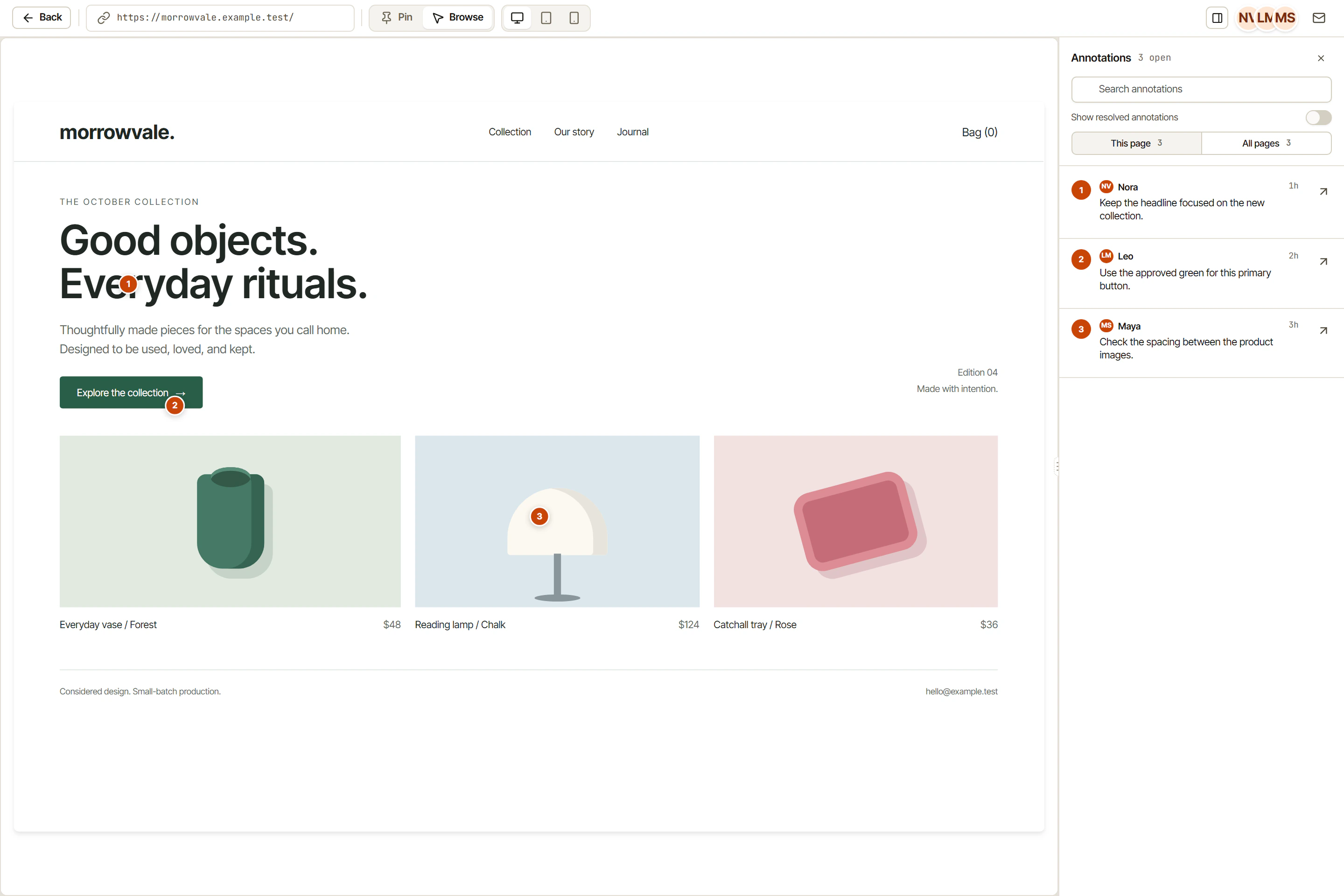
A page fits inside the phone outline in DevTools. That is a useful layout check. Before marking the mobile review complete, open the page on a phone and try the main task.
Use desktop emulation for quick investigation, then record which journeys you checked on physical devices. This gives the team a more useful result than a single checkbox labeled “mobile passed.”
Use emulation to find a specific problem
Browser emulation is convenient when you need to resize a page repeatedly, inspect a broken layout or compare the same screen before and after a CSS change.
Start with the widths in your project’s test scope. Look for horizontal scrolling, overlapping controls, clipped labels and content hidden under a fixed header. Move between widths as well as checking the named device presets. A layout can fit one preset and fail at a width in between.
Chrome’s Device Mode documentation covers viewport, network and CPU simulation. The code still runs on your computer. Treat the selected device as an approximation, then verify important journeys on hardware.
Record throttling settings with performance findings. Use them to investigate, and verify important performance questions on the intended device.
Choose a real journey for the phone check
Pick a journey someone needs to finish: request a demo, send a contact message, review a page or create a test account. Write the expected result before starting.
For a fictional contact form, the route might be:
Open the campaign link.
Read the offer and open Contact.
Enter a name, an invalid email and a message.
Submit, correct the email, then submit once more.
Find the test message at the agreed destination.
Arrange the test destination first. Avoid sending sample messages to a real customer inbox without agreement. Our contact form acceptance criteria help define the expected validation, recovery and delivery behavior.
On the phone, try the route with your fingers. Check whether you can comfortably reach the controls and distinguish neighboring actions. If a menu needs hover to reveal something, confirm that a touch route exists.
Check the states a static screenshot misses
The following are proposed checks, not claims that every mobile browser behaves the same way. Run them on the devices and browsers your team agrees to support.
| State to try | What to observe | What to record |
|---|---|---|
| Form field focused, keyboard open | Can you see the active field, its error and the next action? | Phone, browser, field and screenshot |
| Menu open, then page scrolled | Can you use and close the menu? Is important content covered? | Starting position and exact steps |
| Portrait changed to landscape | Does the current task remain usable? | Orientation and state before the change |
| Browser Back after a step | Does the route return to the expected place with appropriate state? | Previous screen and result |
| File selection, if the journey includes it | Can you choose an allowed test file and understand any rejection? | File type, size and visible message |
Do not combine every failure into “fix mobile.” A keyboard overlap and an unexpected Back destination need different investigation. Create separate tasks when the expected results differ.
Describe the environment precisely
“iPhone” alone leaves too much unknown. Record the model, operating system, browser and version you actually used. If the link opened inside a social app, record that too; do not describe that run as a standalone browser test.
A screen recording helps explain a sequence. A screenshot is often enough for a stable overlap. Remove private messages, account details and other customer information from evidence before sharing it.
When a developer needs more detail on an Android Chrome issue, Google’s remote debugging guide explains how to inspect a page running on the device from a computer. Keep device setup and authorization with the person responsible for that phone.
Copy this mobile QA record
Page / build / starting link:
Task and expected result:
Test type: desktop emulation OR physical device
Emulation settings, if used:
Physical model / OS / browser / version, if used:
Standalone browser or app opening the link:
Steps, including keyboard or orientation changes:
Actual result / evidence:
Retest owner and outcome:
Devices, browsers or states not checked:
Keep the evidence and environment with the reproducible bug report. In OkFlow, visual website feedback can identify the page detail while its connected task carries the owner and follow-up. After the fix, repeat the failing route in the environment where it occurred. Record untested devices as untested in the launch checklist.