How to write a bug report a developer can reproduce
A practical bug report template with steps, expected results, environment details and a worked example for website QA.
“The button doesn’t work” starts a conversation. A useful bug report lets someone repeat the failure, understand the intended behavior and check whether a fix actually worked.
Start with five things: where it happened, the starting conditions, the steps you took, what you expected and what happened instead. Add a screenshot or short recording when it explains something the words cannot.
Name the failure, not just the page
“Contact form issue” makes the next person investigate before they can even sort the task. “Contact form loses the message after an invalid email” identifies the action and consequence.
A good title can stay short. Put browser versions, test data and reproduction steps in the description. Keep one failure per report unless two symptoms clearly belong to the same problem.
Record the starting conditions
The same URL can behave differently for a signed-out visitor, an administrator or a customer with an existing order. Record the relevant role, page, environment and state before the first step.
For a layout issue, include the viewport size and whether you used an actual phone or desktop emulation. For a form problem, note whether the fields were empty or already filled. If it matters, include the language and zoom level. Don’t attach a customer’s private account details just to make the report more specific.
Use steps someone else can follow
Here is a fictional example you can adapt:
Title: Contact form clears the message when the email address is invalid
Environment: Staging contact page; signed out; desktop Chrome; record the exact installed version and viewport when testing.
Starting state: A fresh contact form with no validation errors.
Steps:
- Enter “QA test” as the name.
- Enter “qa-example” in the email field.
- Enter “Please keep this message” in the message field.
- Select Send.
Expected: The form identifies the invalid email and preserves the message so the visitor can correct the address.
Actual: An email error appears, but the message field becomes empty.
Frequency: Reproduced in 3 of 3 attempts on this configuration; other browsers not checked.
Impact: A visitor must retype their message after correcting an email mistake.
Expected behavior should come from an agreed requirement or a clearly explained usability expectation. If the requirement is unclear, say so. “I prefer a different animation” needs a design decision; it is not automatically a defect.
Attach evidence that answers a question
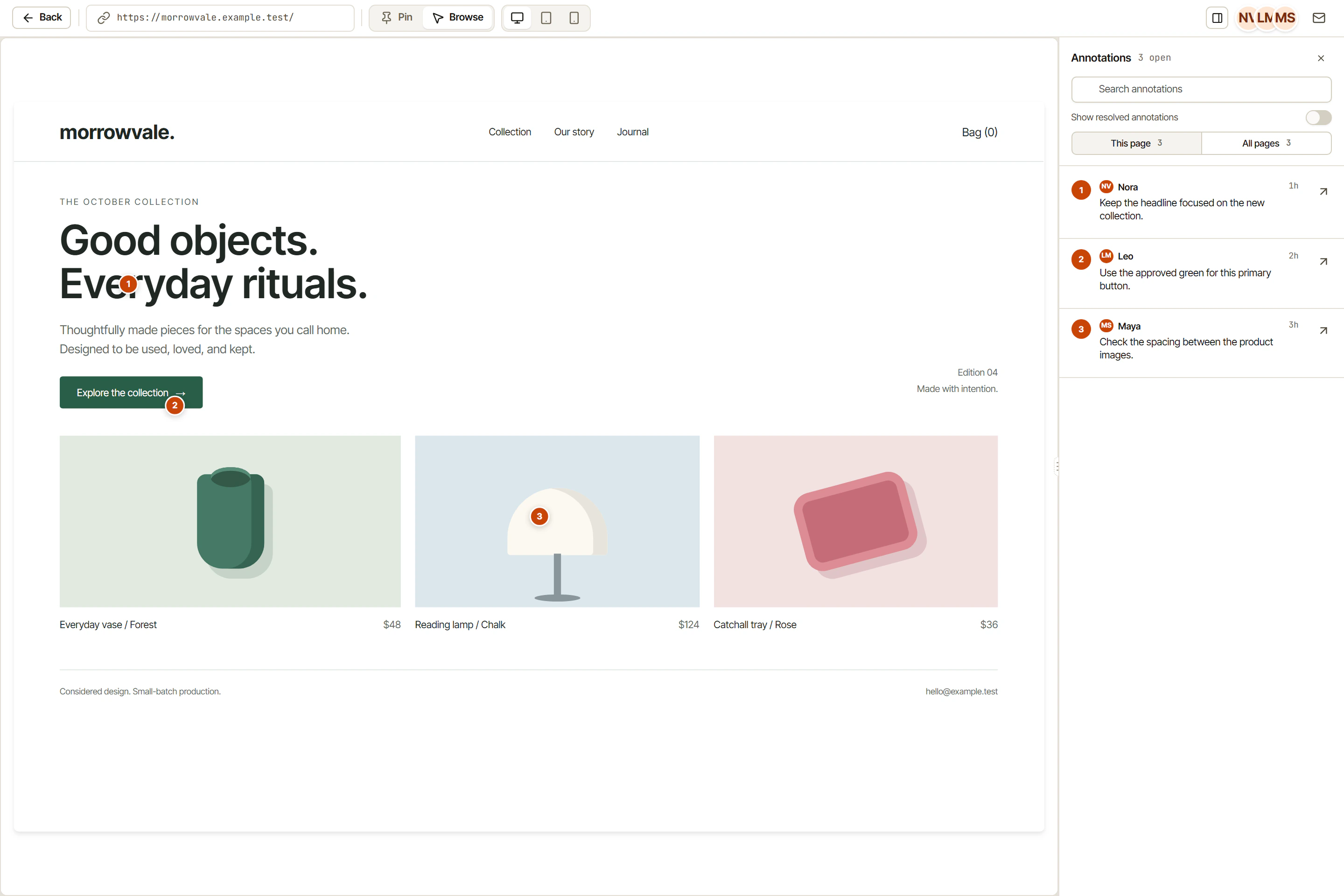
A screenshot helps locate a misaligned element. A short recording helps explain a sequence, such as a menu closing before a visitor can select an item. Show enough surrounding UI to identify the page, and remove personal information before sharing.
Browser developer tools can help a developer inspect the page, console messages and requested resources. MDN’s introduction to developer tools explains the available tools. A client should not need to collect technical logs to report a visible problem. If logs are useful, review them for tokens, private URLs and personal data before attaching them.
For keyboard problems, describe the exact sequence: which element had focus, which key you pressed and where focus moved. W3C’s Easy Checks includes keyboard and visible-focus checks. Those checks are a starting point, not a complete accessibility evaluation.
Separate impact from urgency
“Urgent” on every task gives the team no ordering information. Describe who is blocked, what they cannot do and whether a workaround exists. A broken payment submission and a small spacing mismatch may both be real bugs, but they need different release decisions.
Keep observations separate from guesses. “The form returned an error after Send” is evidence. “The database is down” is a diagnosis that still needs checking.
Retest the original steps before closing
After a fix, run the same steps against the named build or environment. Record the result and date. Then test a nearby successful path: in the form example, correct the email and confirm the original message can be submitted in a safe test environment.
If the bug no longer occurs, record what you tested rather than writing only “done.” If it still occurs, keep the original evidence and add the new result so the investigation remains understandable.
Copy this template into your next task
Title:
Page and environment:
Browser/version, device and viewport:
Role and starting state:
Steps to reproduce:
Expected result:
Actual result:
Frequency and configurations checked:
Impact and workaround:
Screenshot or recording (private data removed):
Retest result, build and date:
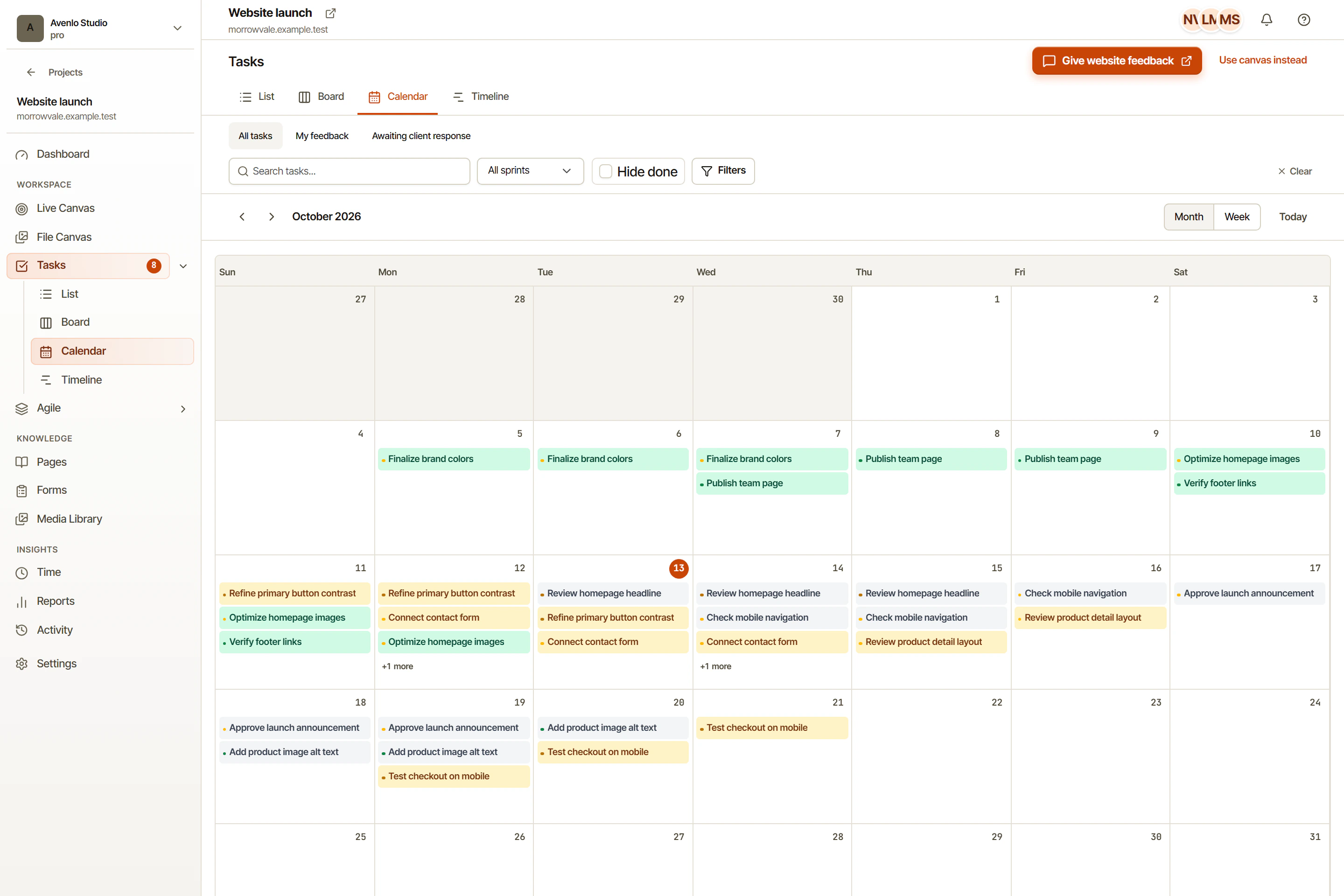
In OkFlow, use visual feedback to point to the affected part of the website, then keep the reproduction details with the task. Our website feedback workflow shows how to move from a comment to a change someone can verify. The aim is a report that a teammate can pick up without another meeting.