How to review a PDF and keep page comments in context
A practical review process for proposals, presentations, and documents that keeps page-specific feedback in context.
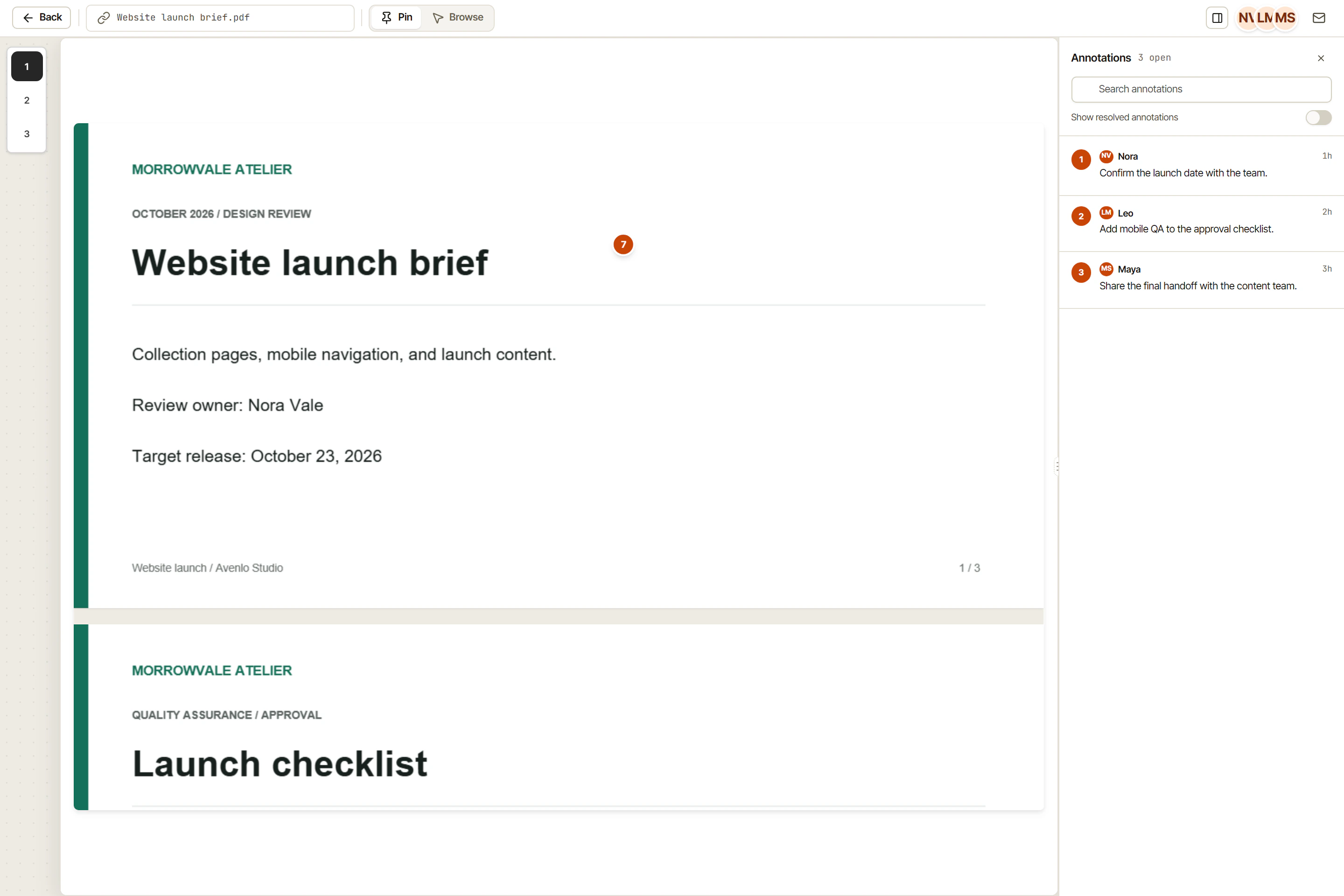
A PDF is rarely finished after its opening page has been checked. A proposal can introduce one scope on page two and a different commitment near the end. A presentation may repeat an outdated claim across several slides. Reviewing isolated screenshots can hide those relationships.
OkFlow supports multi-page PDF scrolling in file review. That gives reviewers a way to review each page without leaving the document. Visual annotations linked to tasks can preserve the location of an issue while the team discusses the change required to resolve it.
Begin with a whole-document pass
Before collecting detailed edits, read the file for its overall purpose. Is the intended audience clear? Does the sequence make sense? Are the proposed next steps consistent with the rest of the document? Record structural concerns separately from local corrections so the team can decide what needs revision first.
Use a second pass for page-level details such as headings, captions, numbers, and layout. In a task description, name the affected page or section and describe the expected outcome. “Correct the date in the closing schedule” is more useful than “there is a typo somewhere toward the end.”
Separate recurring issues from local edits
If the same phrase appears throughout the PDF, describe the scope of the correction. A reviewer might mark one occurrence and explain that the team should check the rest of the document. Do not assume a single annotation represents every instance unless that agreement is explicit.
For issues that require a decision, explain the alternatives in the task discussion. A pricing ambiguity is not just a text edit; it may need confirmation from the person responsible for the offer. Comments and mentions can keep that question connected to the document work.
Verify the revised file deliberately
Treat a replacement PDF as another reviewable deliverable. Agree on a recognizable version name and the changes expected in that revision. This is a team convention, not a claim that every file is automatically compared or that prior annotations transfer between versions.
Check the changed pages and read the surrounding content again. A correction can affect pagination, references, or the meaning of a later paragraph. Capture unresolved concerns before the document is sent onward.
The goal is not to accumulate the most comments. It is to leave a clear account of what changed, why it changed, and which questions still need a human decision. Use OkFlow to connect those observations with the tasks behind the next revision.
Review the document in File Canvas, then give each agreed correction an owner in Tasks. If an external reviewer must approve the result, the client review brief helps define the version and decision required.