How to write website feedback your team can act on
Connect a visual annotation to a clear task without losing the page context or the reviewer's intent.
Updated:
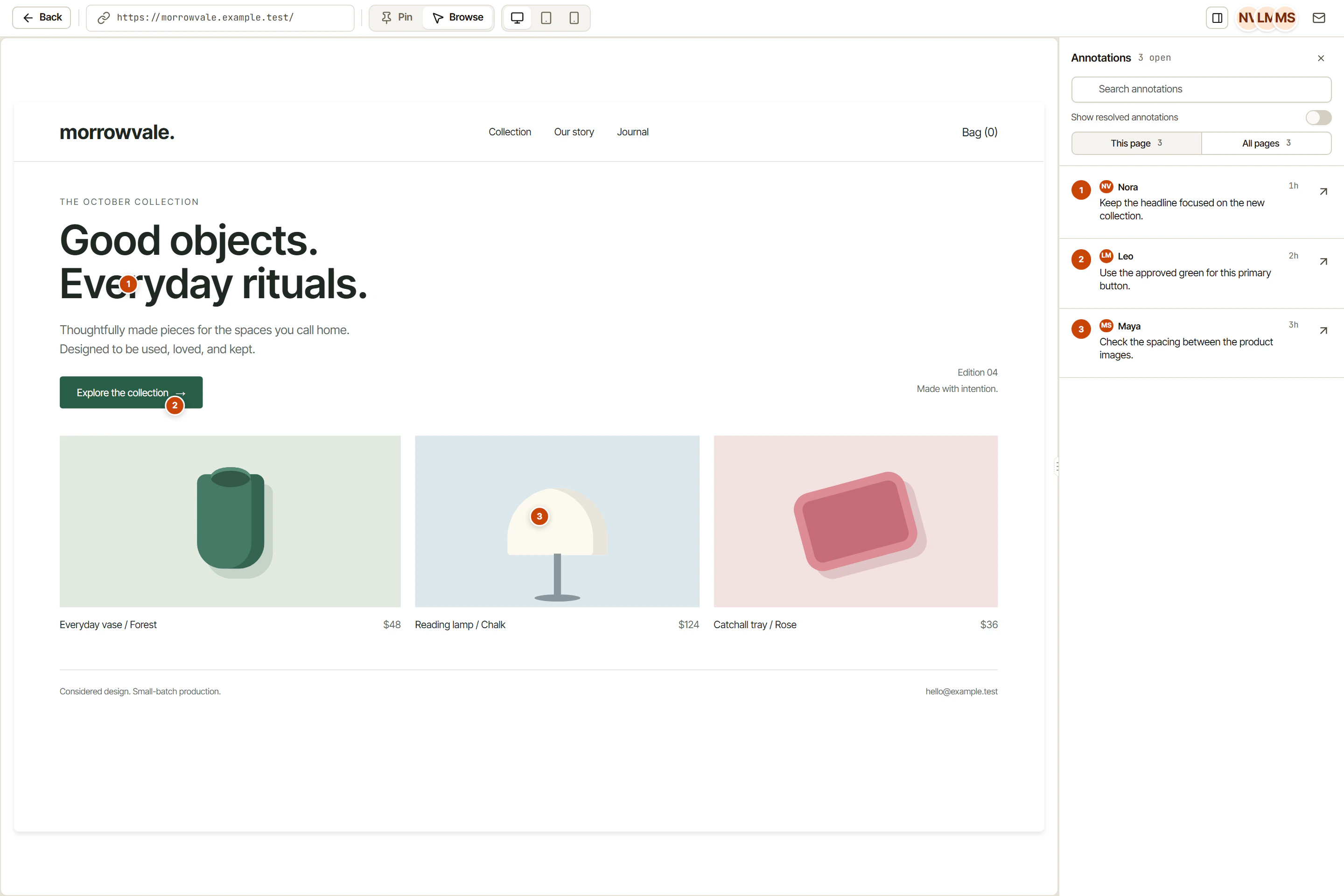
“Something looks wrong near the top” is a real observation, but it leaves the next person with several questions. Which page? Which element? What was expected? Visual feedback becomes useful when the location and the reason travel together.
OkFlow supports visual annotations linked to tasks. That connection is the foundation of a workable review loop: identify the issue on the website, describe the intended change, and keep the resulting work tied to the original context. An annotation marks the subject of a conversation; it does not replace the conversation.
Describe one outcome per observation
Compare “fix this section” with “the introductory paragraph describes the old offer; replace it with the approved copy in the project brief.” The second observation names an outcome and its source. It gives the implementer a way to judge whether the change is complete.
Keep unrelated requests separate. A spacing adjustment and a change to the offer may appear in the same section, but they can have different owners and approval requirements. Combining them makes it harder to explain what is still outstanding when one part is finished.
Include relevant conditions in the task description: the page address, the viewport under review, and whether the behavior occurred before or after an interaction. A visual marker provides location, while rich text provides the detail needed to reproduce and assess the concern.
Triage before assigning work
Not every annotation is a defect. Some are questions, content decisions, or ideas for a future iteration. During triage, agree on the expected result and whether the work belongs in the current release. Then name the responsible person and record the decision in the task discussion.
Comments and mentions can help bring the right person into that discussion. They should support a specific question, such as confirming the approved wording, rather than serve as a substitute for ownership.
Return to the reviewed website
Finishing implementation is not the same as confirming the outcome. Revisit the relevant page and conditions, compare the result with the task’s acceptance criteria, and record any remaining issue explicitly.
For example, correcting a label may also change how a button wraps on a narrow screen. That is a reason to verify the result, not a promise that an annotation automatically detects every consequence. Keep the final review grounded in what a person actually inspected. Start with a small review round in OkFlow and close the loop on each agreed change.
A feedback note you can reuse
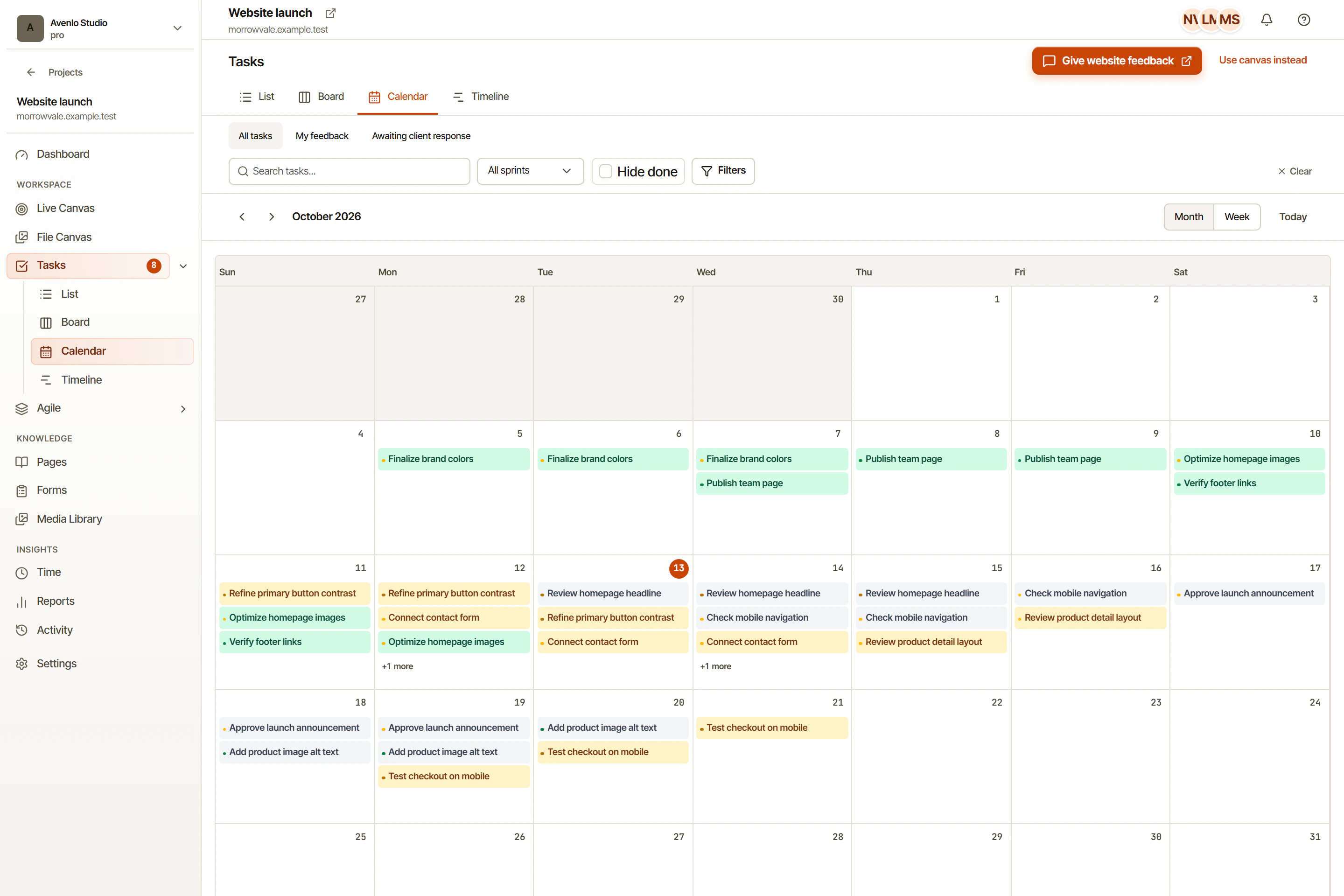
Suppose the contact form shows a success message even when the email field is empty. A useful note names the page, the steps, and the expected result:
Page: /contact
Steps: Leave the email field empty, then select Send.
Observed: A success message appears.
Expected: Ask for a valid email before accepting the submission.
Check: Repeat with an empty email, an invalid email, and a valid email.
This is an example, not a report of a defect in OkFlow. In a real review, add the browser and screen size if they affect the behavior. Attach the visual annotation to the task so the person reproducing it can find the same form.
Download the feedback task worksheet for fields you can copy into a task description. Keep the fields that help the assignee and remove the ones that do not apply. A copy edit usually needs less detail than an intermittent form error.
For the full process, read how to collect website feedback and turn it into tasks. It connects the visual review canvas to task ownership and verification, including a worked example of a client review round.