Keyboard navigation QA: a practical menu testing checklist
Test a website menu without a mouse. Check focus, opening and closing, hidden links and return paths, then turn failures into useful bug reports.
A navigation menu can look finished and still leave a keyboard user stuck. Before approving it, put the mouse aside and follow the same route a visitor would take: find a section, open its links, choose a destination and return.
This is a focused QA pass for ordinary website navigation, not a complete accessibility audit. Use it on a staging page with representative content, including the longest translated labels.
Start with a repeatable setup
Record the URL, browser version, operating system, viewport and language. Check that your browser and operating system are configured to let keyboard navigation reach links and controls. Otherwise, a local setting can look like a site defect.
Reload the page and press Tab from the start. Use Shift+Tab to reverse direction. Keep a short record of the controls you reach; do not click a missing control to get past it. If you must use the mouse to continue, record where the keyboard route stopped.
Run the pass at a desktop width and again where the compact menu appears. A responsive menu is a different interaction, even when its links are identical.
Can you see where you are?
At each stop, identify the focused link or button before pressing another key. Look especially closely at pale backgrounds, orange call-to-action buttons and navigation that sits over imagery. The indicator should remain visible while the control has focus. W3C explains this requirement in Understanding Focus Visible.
In your notes, distinguish “focus moved somewhere unexpected” from “I cannot see focus.” A short recording can help a developer tell those failures apart.
Open the menu, then use its links
For navigation built with disclosure buttons, test Enter and Space on the button, then Tab through the revealed links. Check that the collapsed menu does not leave invisible links in the tab sequence.
Do not automatically file missing arrow-key navigation as a bug. Typical website navigation does not need the complex keyboard model of an ARIA menu. W3C’s disclosure navigation example distinguishes these patterns and treats arrow-key support as optional. Identify the component’s intended pattern before judging its behavior.
Also check the destination. A menu that opens correctly but sends “Pricing” to the wrong language or an old route still fails the visitor’s task.
Check the way out
Can you move beyond the menu and back into the page using the keyboard? W3C’s No Keyboard Trap guidance explains why entering a component must not leave someone unable to exit it.
For a disclosure menu, check Escape and whether focus returns to its trigger, following the intended interaction. If the mobile navigation is a modal dialog, focus may intentionally stay inside while it is open. Test its keyboard-accessible close control and the focus position after closing; containment alone does not prove a defect.
Write a report someone can retest
Here is a fictional example:
Title: Collapsed Product menu leaves hidden links in the tab order.
Setup: Staging homepage, English, desktop navigation. Record the actual browser version and viewport.
Steps: Focus Product, open it with Enter, close it with Enter, then press Tab.
Expected: Focus moves to the next visible navigation control.
Actual: Focus passes through three hidden Product links before reaching the next visible control.
Evidence: Recording shows the full sequence. Reproduced twice on the recorded configuration; mobile not checked.
Keep the tested configuration separate from assumptions about other browsers. Our bug report template has room for the starting state, impact and retest result.
Copy this checklist
Page / build / language:
Browser / OS / viewport:
[ ] Reach each visible navigation control with Tab.
[ ] Identify focus at every stop.
[ ] Open disclosure buttons with Enter and Space.
[ ] Reach revealed links and verify their destinations.
[ ] Keep collapsed links out of the tab sequence.
[ ] Close the menu and confirm the focus destination.
[ ] Leave the component using the keyboard.
[ ] Repeat at the compact-menu breakpoint.
Failures / evidence / configurations not checked:
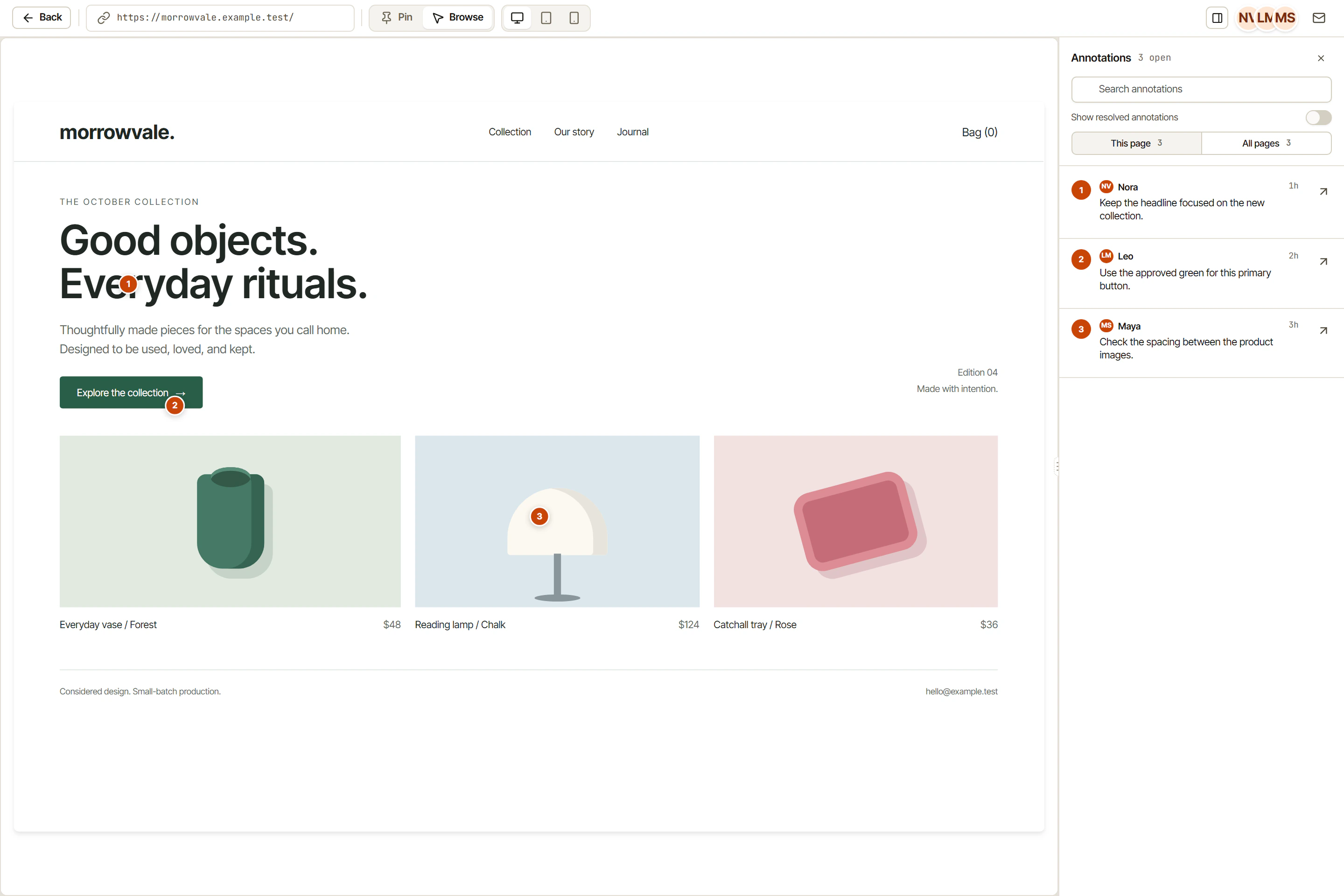
Use OkFlow visual feedback to identify the affected area and include the key sequence in the task. After the fix, repeat that sequence and the reverse route. Add this pass to your website launch checklist, alongside broader accessibility testing.