How to collect website feedback and turn it into tasks
A practical website feedback workflow for agencies: collect visual comments, write useful tasks, review changes, and record client approval. Includes a template.
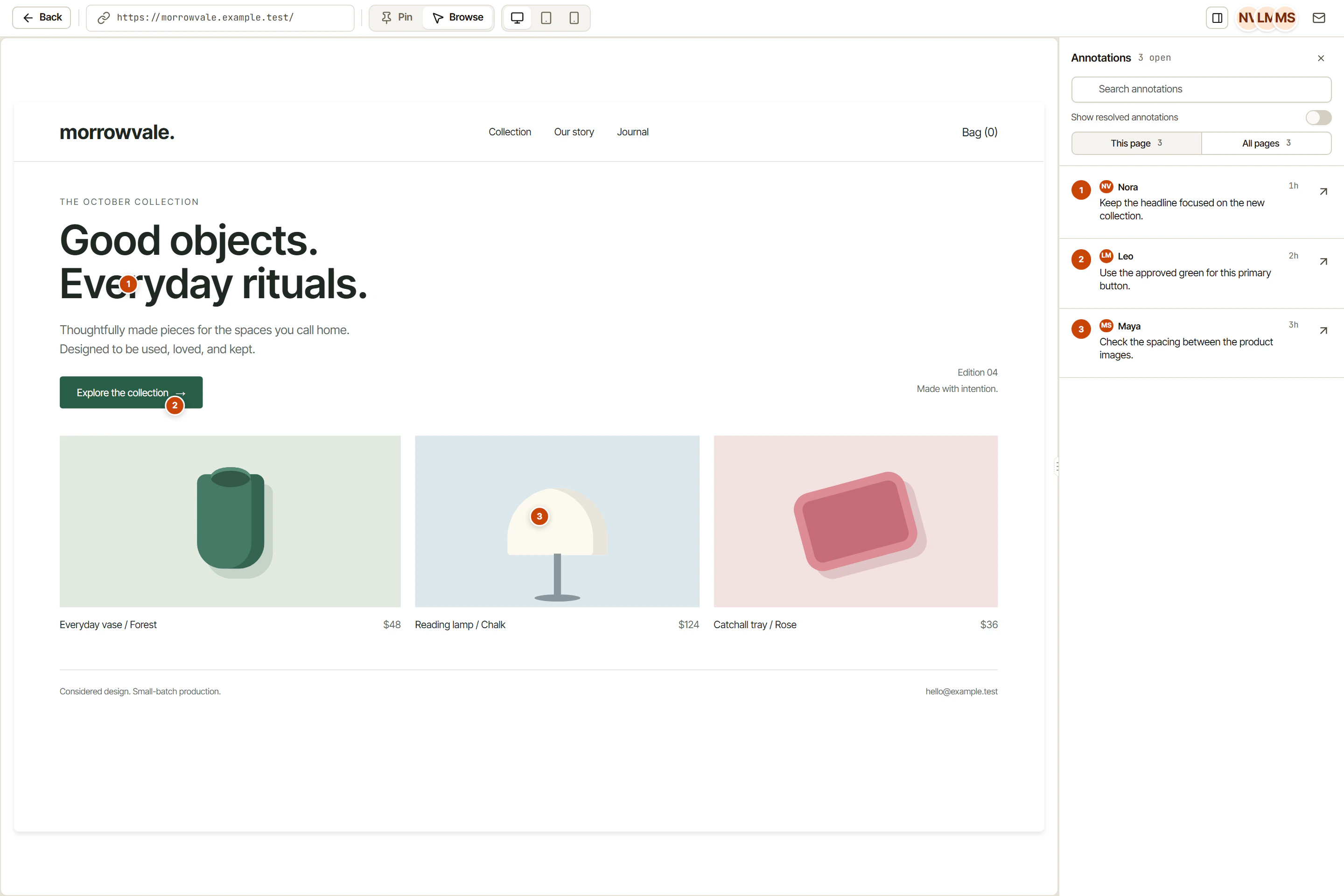
To collect useful website feedback, give reviewers a specific page and a clear question. Ask them to mark the part they mean, describe what should change, and explain why. Turn each agreed change into a task with an owner and a way to check the result. Return to the website before closing it.
That sounds straightforward until the first review round arrives. One person sends a screenshot in chat. Another replies to an old email. A client says “the button still looks strange,” and the developer has to work out which button, on which page, at which screen size.
The expensive part is reconstructing the request. A useful feedback workflow keeps that context attached to the work.
Here is a process an agency or product team can use in OkFlow’s visual feedback workspace. The landing page example below is fictional; it is a worked example you can adapt, not a customer case study.
What website feedback software should help you keep
Website feedback software gives reviewers a way to comment on a page and helps the team preserve the location of each observation. The next step matters just as much: someone needs to decide what the comment means for the project.
A pin answers “where?” It does not necessarily answer “what should happen?” Your task needs enough detail that someone who missed the review meeting can still make the change.
For most website reviews, keep these details together:
- The page URL and the element under discussion.
- What the reviewer saw and what they expected instead.
- Relevant conditions, such as screen width or the steps before an error.
- The person responsible for the next action.
- A concrete check that tells the reviewer whether the change is ready.
If a screenshot helps, attach it. If the request depends on approved copy, link to that copy. You do not need a long report for every typo. You do need to remove the guesswork.
Start the review with a question people can answer
Suppose an agency is preparing a landing page for a workshop. The team needs the client to check the offer, dates, and registration wording. The layout is still being adjusted.
“Please review the website” is too broad. Try this instead:
Review the workshop landing page for the October release. Check the workshop date, price, and registration wording against the approved brief. Add separate comments for requested changes. Maya will consolidate feedback on Tuesday; Luis will confirm the final wording.
Now the reviewers know what to inspect and who owns the decision. Layout suggestions can still be recorded, but the team can distinguish them from changes required for this round.
Keep the brief in project Pages so the reviewer and implementer can refer to the same wording. For external participants, check the guest review scope before sending the invitation. Access should cover the intended deliverable.
Turn “fix the button” into a task someone can finish
Imagine a reviewer notices that the landing page button says “Get a quote” even though the visitor is registering for a workshop. They pin a comment to the button. The team agrees to change it.
The task could read:
Title: Change the workshop CTA to "Register for the workshop"

Page: /workshops/october
Location: Primary button below the workshop introduction
Observed: The button says "Get a quote".
Expected: Use "Register for the workshop", as approved in the brief.

Owner: Assigned developer
Review: Client's designated copy approver

Acceptance checks:
- The visible label matches the approved copy.
- The button opens the intended registration page.
- The full label is readable at 390 px and on desktop.
- The button is reachable and usable with a keyboard.
The names and page in this example are placeholders. Replace them with the real decision owner and URL. A 390 px check is useful for this example, but your review should include the screen sizes your project actually supports.
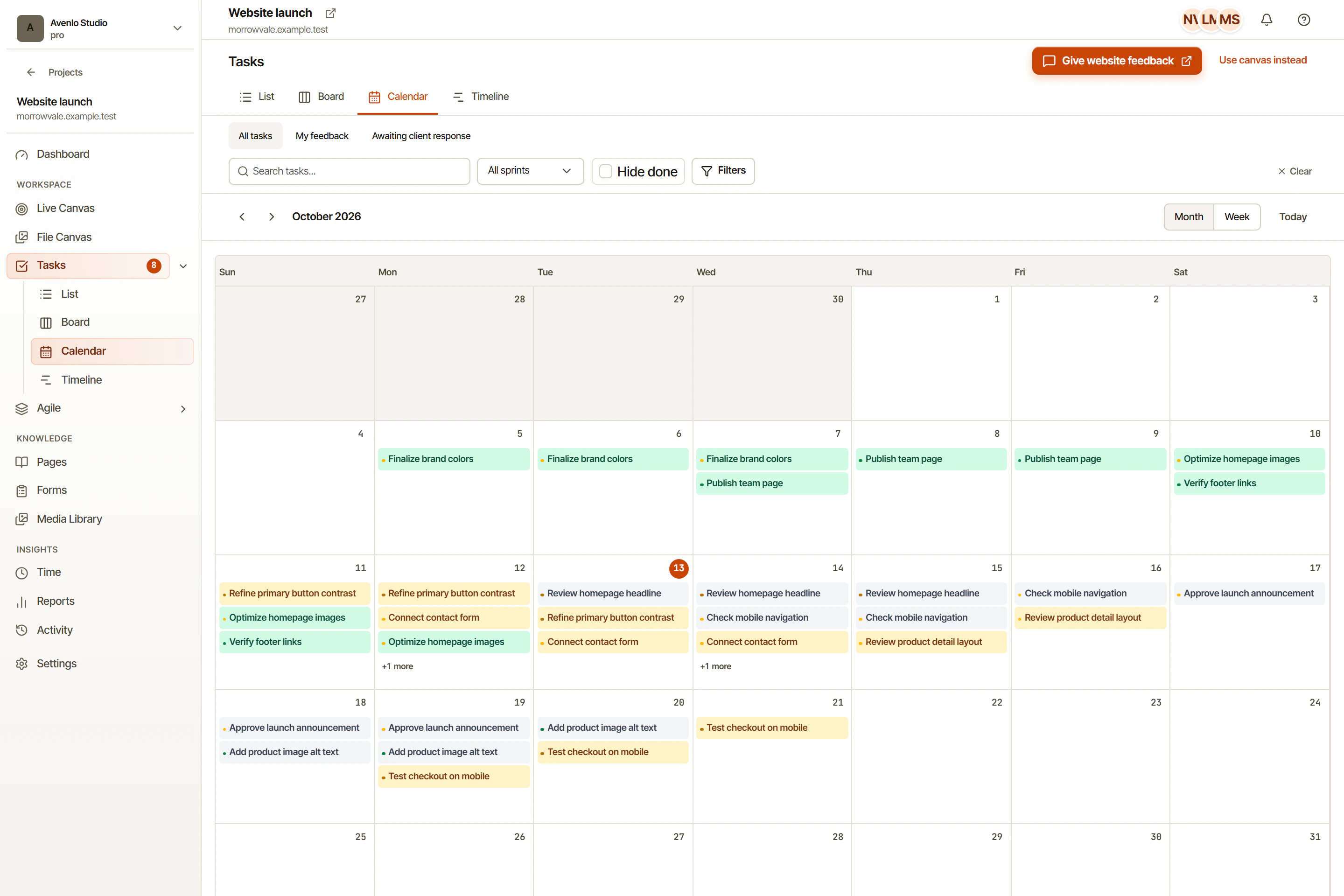
In OkFlow, visual annotations can be linked to tasks. Use the task workspace to keep the description and discussion with the agreed work. The annotation preserves the location; the acceptance checks explain what the assignee should deliver.
Download the website feedback task template and copy it into your team’s task description. It is a plain text worksheet, so you can use it in an existing process without setting up an import.
Triage comments before they become commitments
Not every comment should enter the current release. During triage, decide whether an observation is a defect, a question, an agreed change, or an idea to consider later.
Consider a second comment: “Could we add a video here?” That is an open request. The team still needs to decide what the video would explain, who would produce it, and whether it belongs in this launch. Assigning it directly to a developer would hide those decisions inside an apparently ordinary task.
Record the answer in the task discussion. If the team defers the idea, keep it in the backlog with that explanation. If the wording needs client confirmation, name the person who will obtain it. A board column alone will not explain why the work is waiting.
This is where backlog and board views serve different purposes. Use the backlog for work under consideration and the board to discuss work the team has actually taken on.
Pick a review surface that fits the deliverable
Live website review is useful when the concern depends on the actual page: a label, a link destination, or the state after opening a menu. Check the interaction as well as its appearance.
Some sites restrict embedding in another page. If the live canvas cannot display the site, use a captured image for visual discussion or use the browser extension if it is installed for your team. A captured image can show a layout issue; the interactive behavior still needs a separate check in the website itself. The browser extension page explains how to request installation details.
For a proposal, presentation, or PDF, use File Canvas. Record the page number and the version being reviewed. If the same claim appears on several pages, list those locations so the correction does not stop at the first occurrence. Our PDF review guide covers that process.
Reopen the page before you close the task
The developer changes the workshop button and moves the task into review. Someone now needs to check the result against the acceptance checks.
Open the agreed page, confirm the wording, follow the link, and repeat the relevant screen and keyboard checks. Record what you inspected. If the label is correct but the registration link is wrong, the task still has work left.
Keep the verification note short and factual:
Checked the updated label on the workshop page at 390 px and desktop. The button opens the approved registration page and works with the keyboard. Copy approver confirmed the wording in this review round.
Write the note after doing the checks, and adjust it to what you observed.
How do you know the client has approved the work?
Ask the designated approver to identify the deliverable and the scope of the decision. “Workshop landing page copy approved for the October release” is clearer than “looks good.”
Keep unresolved conditions next to that decision. Approval of the copy does not settle an open accessibility issue or authorize a new page. The client approval guide includes a review brief you can reuse.
For the first round, keep the process small. Pick one page, invite the people who need to review it, and follow a few agreed changes through to verification. You will quickly see where the team needs more detail and where the template can be shorter.
Start a project in OkFlow, or use the worksheet with the tools you already have. The habit to keep is simple: the original observation should still make sense when someone returns to finish the task.