Screenshot or screen recording? Choose useful evidence for a bug report
Choose a screenshot for a stable visual issue and a recording for a sequence. A practical bug-evidence guide with examples, privacy checks and a copyable note.
A screenshot shows a missing menu. It does not show whether the menu failed to open, closed after a scroll, or disappeared when the page changed orientation.
Choose the evidence around the question the next person needs to answer. Use an image to inspect a stable detail. Record the sequence when the action or timing explains the failure. Add written steps in either case.
Use a screenshot when the problem stays in place
A clipped label, an overlapping button or the wrong spacing can usually be explained in a still image. Show the affected detail and enough of the page to locate it. A tiny crop of an orange rectangle is difficult to connect to a particular button.
Keep an unmarked reference if you add an arrow or annotation. Point to the issue without covering the text, border or control that someone needs to inspect. Label a zoomed detail as a close-up; do not imply that its displayed size is the original viewport.
Browser capture tools offer different scopes. For example, Firefox Screenshots supports a selected region, the visible area and a full-page capture. Choose the scope that explains the report rather than collecting a long page by default.
For a fixed header covering a button, the visible viewport and scroll position matter. Include them in the note instead of expecting a full-page image to describe that state.
Record when the sequence explains the bug
Start just before the action that triggers the failure. Make the action visible, then leave the result on screen long enough to inspect. Remove unrelated setup from the shared clip, while keeping the starting conditions in the report.
Consider this fictional example:
Page: /pricing, English, test build QA-42
Starting state: narrow viewport, page at the top
1. Open the navigation menu.
2. Scroll down while the menu remains open.
Expected: the menu stays usable and can be closed.
Actual: the menu panel disappears; the page remains blocked.
Evidence: recording of the open > scroll > blocked sequence
The recording explains the transition. The steps let someone attempt it again. A useful title would be “Page remains blocked after scrolling with the menu open,” rather than “Menu video.”
Match the evidence to the question
| Question | Useful starting evidence | Context to add |
|---|---|---|
| Where is the layout wrong? | Screenshot with a clear page reference | URL, viewport, language and build |
| Which action triggers it? | Recording of the shortest clear sequence | Starting state and numbered steps |
| Did the fix change another component? | Comparable before-and-after images | Same content, state and capture conditions |
| Does the issue occur intermittently? | Recording of an occurrence plus a written count | Attempts, conditions and any runs that passed |
| Did a form message arrive? | A check at the agreed test destination | Test identifier and expected delivery result |
That last check needs more than a success notification. Use the contact-form criteria to agree on what counts as delivery. An image of a green message proves only that the message appeared on that screen.
Prepare the file before attaching it
Use sample accounts and test data where possible. Review the exported file for private messages, customer names, account details, browser tabs and notifications. Screen recordings need this check throughout the clip, not just on the opening frame. Check audio too if it was recorded.
Confirm who can access the destination before uploading. On GitHub, for example, attachments upload immediately; its documentation also distinguishes access for public and private repositories. Prepare the shareable version first. Do not rely on leaving the comment unsubmitted to keep an attachment local.
Check the receiving tool’s format and size limits, then open the uploaded file to confirm it is readable. Keep labels and error text legible when compressing a clip.
Copy this evidence note
Problem / expected result:
Page, build and language:
Browser / OS / device / viewport:
Starting state and steps:
Actual result and repeatability:
Attachment and what it demonstrates:
Relevant timestamp, if a recording:
Private data and audio reviewed:
Destination audience checked:
Retest result / remaining unknowns:
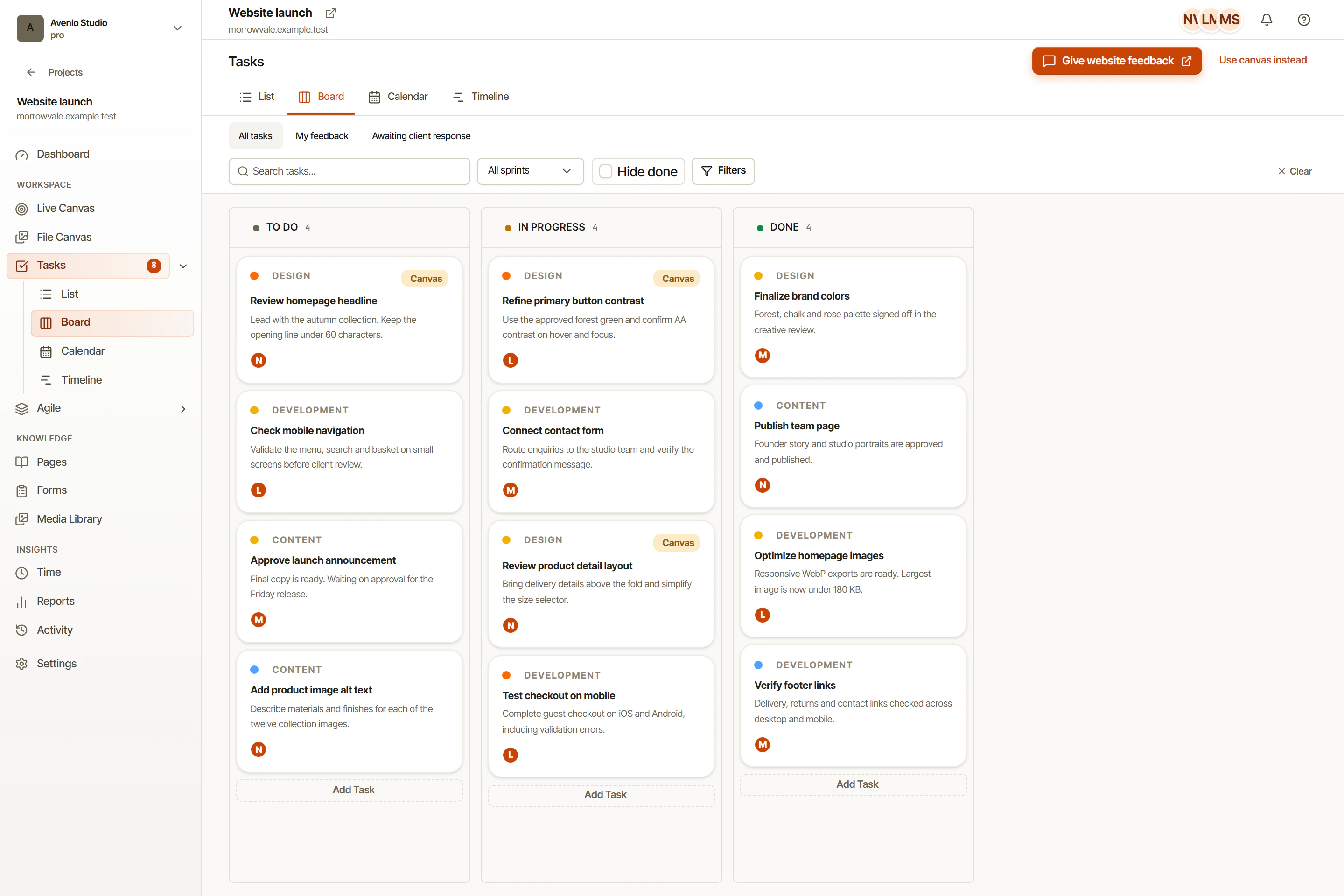
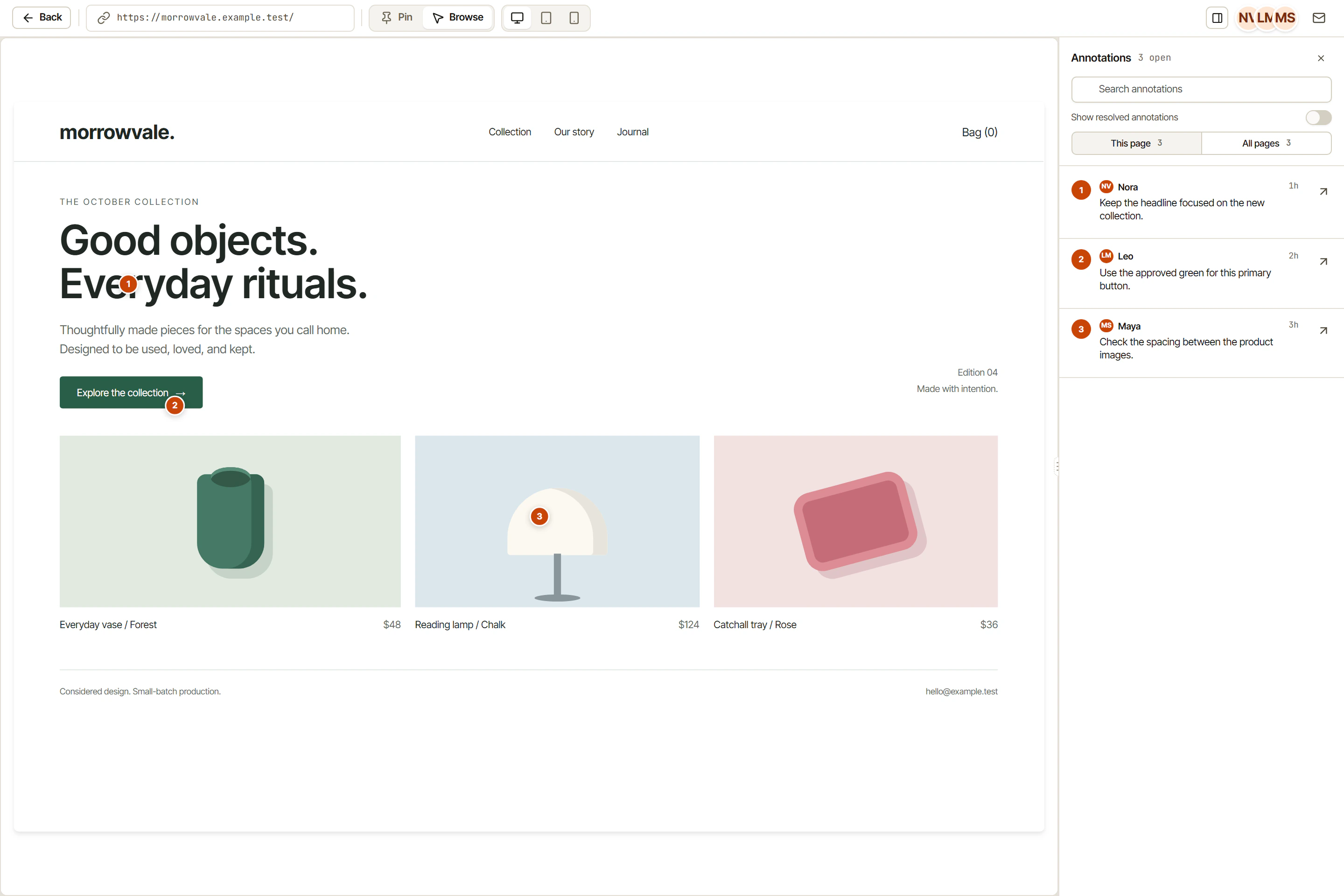
Keep this note with the bug report. In OkFlow, a visual website comment can locate the detail while its connected task carries ownership and follow-up. After the fix, repeat the original steps and record the result. For shared style changes, use the CSS regression checklist to decide what else needs a check.