How to write timesheet notes for website revisions
Replace vague website revision time entries with useful notes. Includes examples, a weekly review checklist and a template for client feedback, fixes and QA.
“Website updates — 3 hours” records a duration. It leaves a project manager guessing what changed, which review round requested it, and whether the work included testing.
A useful timesheet note names the task and the work performed. Keep the explanation short enough to write during the day, then use the weekly review to resolve missing context. The examples below are fictional writing conventions you can use with any time tracker.
Write the action, location and result
Start with a verb: reproduced, revised, implemented, tested or reviewed. Add the page or task reference. Finish with the result, including anything still open.
| Vague note | More useful note |
|---|---|
| Website changes | Revised the pricing FAQ copy from review round 2; ready for copy review. |
| Fixed mobile | Reproduced the contact button overlap at 390 px and adjusted spacing; device retest pending. |
| Client feedback | Reviewed comments on the services page; clarified two requests with the approver. |
| QA | Retested the menu fix on the agreed phone and browser; original steps now pass. |
The note is a summary, not a replacement for the task. Keep detailed steps, screenshots and discussion in the work record. Reference it instead of pasting the entire bug report into each entry.
Keep review, implementation and verification distinguishable
A website revision often includes more than editing a page. Someone reads the feedback, asks a question, changes the implementation and checks the result.
If those activities need separate visibility, name them consistently. Use a small vocabulary your team understands, such as review, implementation and QA. These are suggested descriptions, not automatic classifications or special OkFlow fields.
For example, a fictional task WEB-218 could have these entries:
20 min — Review: clarified the requested contact button wording with the client.
45 min — Implementation: updated wording and spacing on /contact.
15 min — QA: checked the new label and destination on desktop; phone retest pending.
Those entries total 80 minutes of recorded work. They do not prove the task is approved or ready to close. The phone check remains open. See the client approval guide for recording a decision separately from the work that led to it.
Separate time spent from time waiting
“Waiting for copy approval since Tuesday” explains a delay. It does not tell you how long someone worked on the request.
Record active work according to your team’s agreed convention. Keep waiting status and the person responsible for the next decision in the task. If you spent time preparing questions or discussing the copy, describe that work rather than logging the whole elapsed wait as effort.
When a new request expands the task, record the scope decision too. A timesheet note should not become the only place where the team discovers that an extra page was added.
Review the week against the actual work
At the end of the week, compare the entries with the project tasks. Ask:
- Does each entry belong to the intended project and task?
- Does the note explain what happened without reopening a chat thread?
- Are any periods missing or counted twice?
- Does an implementation note claim completion while verification is still pending?
- Does a revision need a scope decision before more work continues?
If a duration is an estimate, identify it using your team’s convention. Do not invent precise timestamps to make an incomplete record look exact. Logged hours also do not establish what is billable; follow the agreement for that project.
Use this note for the next website change
Task / page / review round:
Activity: review / implementation / QA
Work performed:
Result / remaining check:
Recorded duration:
Estimated, if applicable:
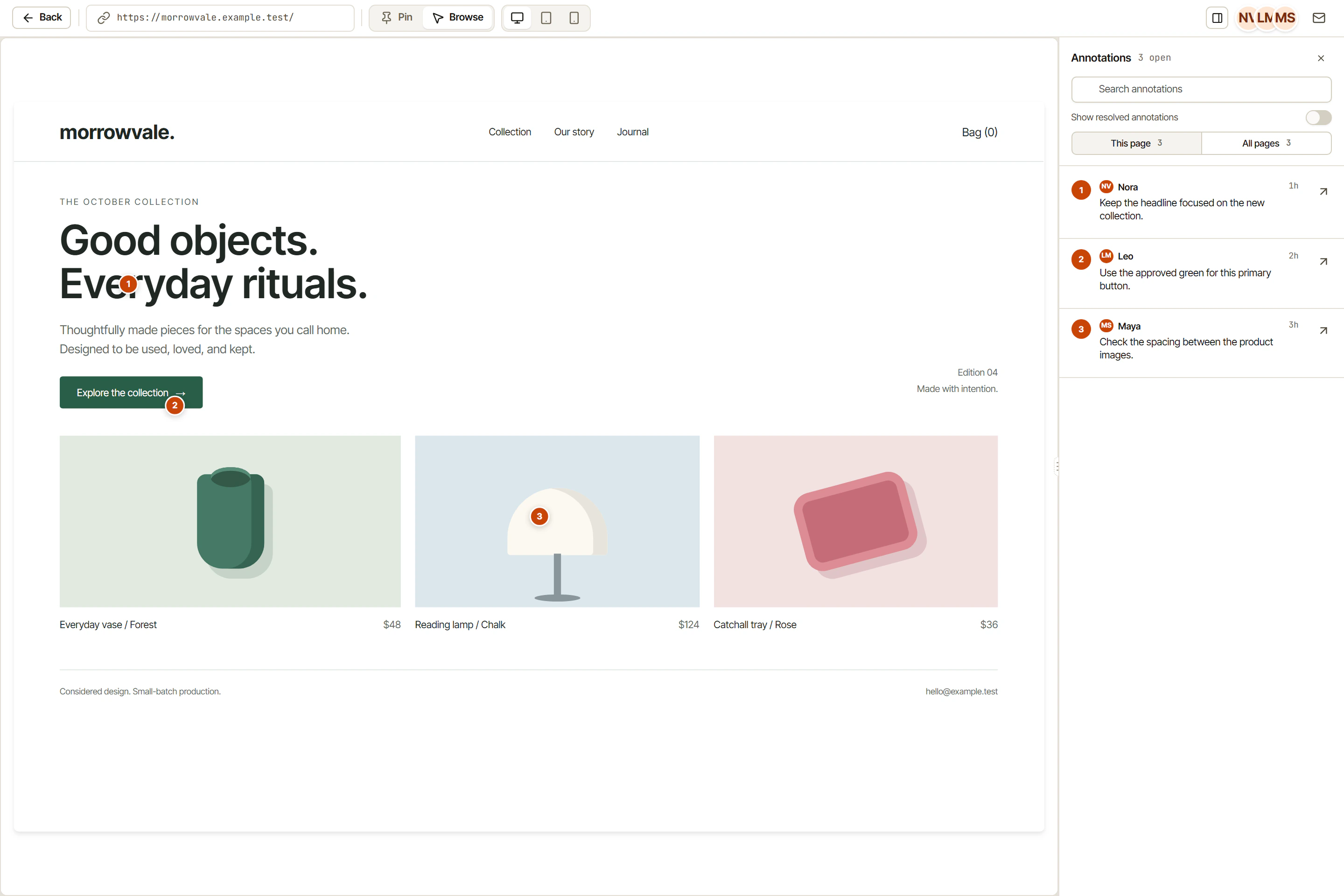
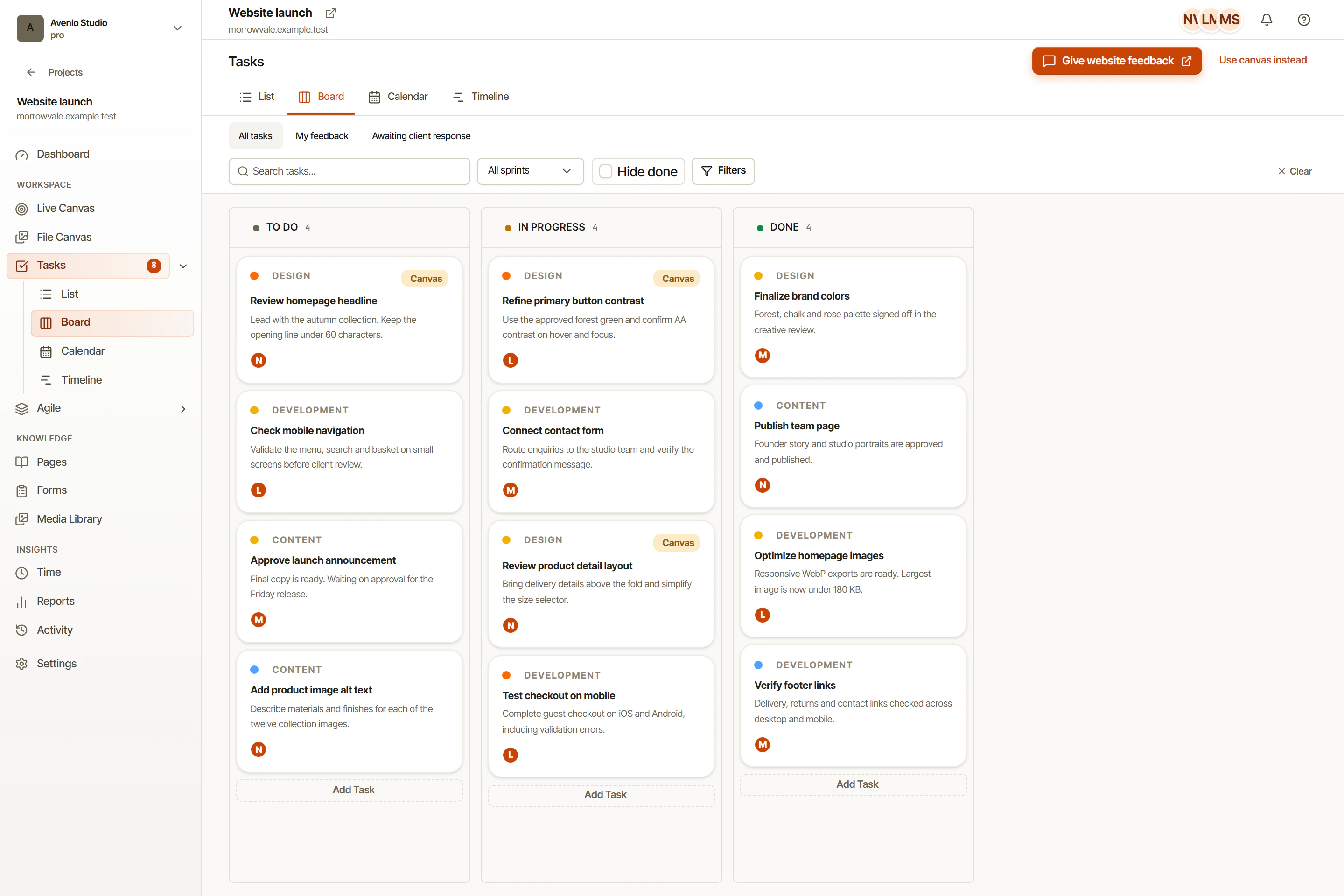
OkFlow’s task workspace connects website feedback with assigned work and time tracking. Weekly timesheets let the team review logged hours alongside that work. Check the current plan details when choosing access; avoid assuming every plan includes the same time features.
Start with the website feedback workflow: locate the comment, agree on the change and assign the task. Then write a time note that the person reviewing the week can understand. Keep the final verification result in the task, even when the time entry is already complete.